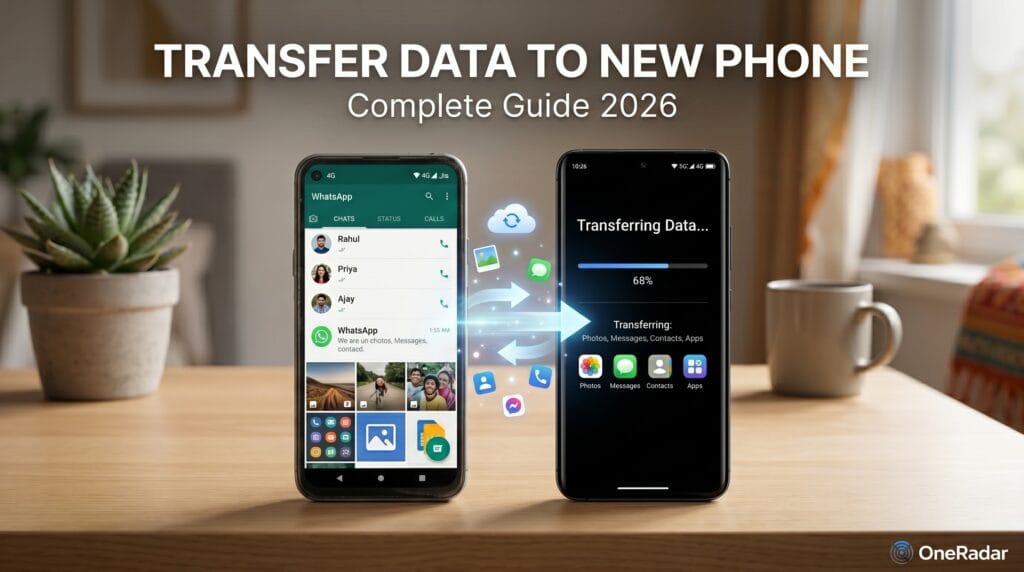
Knowing how to transfer data from old phone to new phone is the first thing every Indian buyer needs to do after unboxing a new device — and it is simpler than most people expect. Whether you are switching from one Android to another, moving from iPhone to iPhone, or making the big jump from Android to iPhone or vice versa, every method is covered in this guide with exact step-by-step instructions.
The most common mistake when you transfer data from old phone to new phone in India is starting the process without preparation — and losing WhatsApp chats, contacts, or photos in the process. This guide covers everything you need to do before, during, and after the transfer to make sure nothing is lost.
Before You Transfer Data from Old Phone to New Phone — Do These 5 Things First
Skipping preparation is the reason most data transfers go wrong. Before you transfer data from old phone to new phone in any of the methods below, complete all five of these steps.
Step 1 — Charge both phones above 50%. A transfer that stops halfway because the battery died corrupts data and forces you to start again. Plug both phones into their chargers and do not unplug until the transfer is completely finished.
Step 2 — Connect both phones to the same Wi-Fi network. Most transfer methods use Wi-Fi to move data between devices. Both phones must be on the same network — not one on Wi-Fi and one on mobile data. Use your home Wi-Fi for the fastest and most stable transfer.
Step 3 — Check available storage on your new phone. Your new phone must have at least as much free space as the total data on your old phone. Check your old phone’s storage usage under Settings → About Phone → Storage. If your old phone has 40GB of data, your new phone needs at least 40GB of free space.
Step 4 — Note your Google account email and password. You will need to sign into your Google account on the new phone during setup. If you have forgotten your Google password — reset it now at accounts.google.com before starting the transfer.
Step 5 — Back up WhatsApp separately. WhatsApp data does not transfer automatically through most phone brand tools. Open WhatsApp → Settings → Chats → Chat Backup → Back Up Now. Wait until the backup shows today’s date and time. This is your safety net — even if the main transfer fails, your WhatsApp chats are safe in Google Drive.
Method 1 — Transfer Data from Old Android to New Android Phone
This is the most common scenario for Indian buyers — switching from one Android phone to another, whether staying with the same brand or switching brands.
Using Your Phone Brand’s Built-In Transfer App
Every major Indian Android brand has a dedicated app for transferring data wirelessly between phones. These apps are the fastest and most complete method — they transfer contacts, messages, call logs, photos, videos, apps, and even home screen layout without needing a computer or internet connection.
Samsung Smart Switch: Available on all Samsung Galaxy phones. Open Smart Switch on both phones (search for it in Settings or download from the Play Store if not pre-installed). On the new Samsung phone — tap Receive Data. On the old phone — tap Send Data → Wireless. Both phones connect directly and transfer begins. Smart Switch transfers contacts, messages, call logs, photos, videos, music, apps, settings, and home screen layout.
OnePlus Clone Phone: Pre-installed on all OnePlus phones. Settings → System → Clone Phone → select Old Phone on old device and New Phone on new device. Follow the QR code pairing process. Clone Phone transfers everything including apps and their data.
Xiaomi and Redmi Phone Clone: Search for “Phone Clone” or “Mi Mover” in Settings on both Xiaomi phones. Open on both, scan the QR code shown on the new phone using the old phone’s app, and select the data to transfer.
Realme Clone Phone: Pre-installed on Realme phones under Settings → Other Settings → Clone Phone. Follow the same QR code pairing process.
Vivo and iQOO Phone Clone: Settings → More Settings → Phone Clone. Available on all Vivo and iQOO phones.
OPPO Phone Clone: Settings → Additional Settings → OPPO Clone. Same QR-based wireless transfer process.
Important: Keep both phones within 30 centimetres of each other during the entire transfer. Moving them apart disrupts the direct Wi-Fi connection these apps use and can corrupt the transfer.
Using Google Backup — Works Across All Android Brands
If you are switching between different Android brands — say from a Redmi to a Samsung — and the brand-specific apps do not work together, Google’s built-in backup is the reliable cross-brand solution.
On your old phone — back up to Google: Settings → System → Backup → Back up to Google Drive → Back up now. This backs up contacts, call history, app data, device settings, and Wi-Fi passwords to your Google account. For Samsung phones — Settings → Accounts and Backup → Back up Data.
Verify on Google Account backup settings that your backup completed successfully before wiping or selling your old phone.
On your new phone — restore from Google: During initial setup of the new phone, sign in to the same Google account and select “Restore from backup” when prompted. The new phone downloads all backed-up apps, settings, and data automatically.
What Google backup does not transfer: Photos and videos (use Google Photos for this — covered below), WhatsApp chats (back up separately — covered above), SMS messages on some brands, and locally stored files not synced to any cloud service.
Transferring Photos and Videos via Google Photos
Google Photos is the most reliable way to transfer your entire photo library when you transfer data from old phone to new phone in India.
On your old phone — open Google Photos → tap your profile picture → Photos Settings → Backup → turn on Backup. Wait until backup shows “Backup is on — All backed up.” This may take hours if you have thousands of photos — start this process the night before.
On your new phone — sign into the same Google account → open Google Photos → all photos appear instantly. For offline access without using mobile data — open Google Photos → tap any album → three dots → Download all.
Free storage: Google Photos offers 15GB free storage per Google account — shared across Gmail and Drive. Most Indian buyers with thousands of photos need to check whether their library fits. If your library exceeds 15GB — purchase 100GB of Google One storage at approximately ₹130 per month, which covers most users comfortably.
Method 2 — Transfer Data from Old iPhone to New iPhone
Apple makes the iPhone-to-iPhone transfer process the simplest of any scenario — the two phones genuinely do almost everything automatically when placed next to each other.
Method 2A — Quick Start (Automatic Wireless Transfer)
This is Apple’s recommended method and by far the easiest way to transfer data from old phone to new phone in the iPhone ecosystem.
Step 1: Turn on your new iPhone and place it next to your old iPhone. A “Set up new iPhone” animation appears on your old phone automatically.
Step 2: Use your old iPhone’s camera to scan the animation displayed on the new iPhone’s screen.
Step 3: Enter your old iPhone’s passcode on the new iPhone when prompted.
Step 4: On the Transfer Data screen — select “Transfer Directly from iPhone” for a direct wireless transfer without using iCloud. This is faster than the iCloud method and does not require a strong internet connection.
Step 5: Keep both iPhones plugged in and next to each other. Do not use either phone during the transfer. Depending on how much data you have — the transfer takes 20 minutes to 3 hours. A phone with 50GB of photos and apps can take 2 to 3 hours over wireless. Connect with a Lightning or USB-C cable between the two phones to speed this up significantly.
Step 6: When the transfer completes, your new iPhone has an exact copy of your old iPhone — every app, photo, setting, iMessage history, and account.
Method 2B — iCloud Backup and Restore
Use this method if Quick Start fails, if the two iPhones are not physically together, or if you prefer having a cloud backup as a safety net.
On your old iPhone: Settings → tap your name → iCloud → iCloud Backup → Back Up Now. Wait until the backup shows today’s date and time. Ensure you have enough free iCloud storage — 5GB is free, which is insufficient for most users. Purchase 50GB iCloud+ for ₹75 per month if needed.
On your new iPhone: During setup → Apps and Data screen → Restore from iCloud Backup → sign in to your Apple ID → select the most recent backup. Keep the phone on Wi-Fi and charging until the restore completes fully. Apps download in the background after the initial restore — open each app once to trigger its download.
Method 3 — Transfer Data from Android to iPhone
This is the most common cross-platform switch in India in 2026 — Indian buyers upgrading from a Samsung, Xiaomi, or Realme to an iPhone. Apple’s Move to iOS app makes this surprisingly straightforward.
Using Apple’s Move to iOS App
Step 1 — Install Move to iOS on your Android phone: Download the Move to iOS app from the Google Play Store on your old Android phone. This app is made by Apple and is free.
Step 2 — Start the iPhone setup: Turn on your new iPhone and follow setup until you reach the “Transfer Your Apps and Data” screen. Tap “From Android.”
Step 3 — Get the code: Your iPhone displays a 10-digit code on screen.
Step 4 — Enter the code on Android: Open the Move to iOS app on your Android phone → Agree to terms → Continue → enter the 10-digit code from the iPhone screen.
Step 5 — Select data to transfer: A list appears showing transferable content — Contacts, Message History, Camera Roll, Albums, Files, Accessibility Settings, and Web Bookmarks. Select everything you want to move.
Step 6 — Wait for transfer: Keep both phones on charging and do not use them. Move to iOS creates a temporary Wi-Fi network between the two devices — do not close the app or switch to other apps on either phone. Transfer time varies from 15 minutes to 2 hours depending on how much data is being moved.
What Move to iOS transfers: Contacts, message history, photos and videos, web bookmarks, mail accounts, calendars, free apps that exist on both platforms, accessibility settings.
What Move to iOS does NOT transfer: Paid apps (you must repurchase on the App Store), WhatsApp chats (separate process — covered below), music from local storage, SMS from non-Google messaging apps.
Transferring WhatsApp from Android to iPhone
WhatsApp chats were previously the most painful part of switching from Android to iPhone — they simply could not be transferred. WhatsApp now supports direct chat migration from Android to iPhone as of 2024 — and it works through the Move to iOS app itself.
When you reach the Transfer Your Apps and Data step in Move to iOS — WhatsApp now appears as a transferable item if you have WhatsApp installed and backed up on the Android phone. Select WhatsApp in the transfer list. After the Move to iOS transfer completes, install WhatsApp on the iPhone and sign in with the same number — your full chat history including media appears automatically.
If WhatsApp does not appear in the Move to iOS list — do the transfer manually. On Android, open WhatsApp → Settings → Chats → Move Chats to iPhone → follow the in-app guide which walks you through the process using a USB-C to Lightning cable or USB-C to USB-C cable depending on your iPhone model.
Method 4 — Transfer Data from iPhone to Android
Switching from iPhone to an Android phone — a Samsung, OnePlus, or Xiaomi — requires a different approach since Apple’s Move to iOS only works in one direction.
For Contacts: On your iPhone — Settings → your name → iCloud → Contacts → turn on. This syncs all contacts to iCloud. On your computer, go to icloud.com → Contacts → select all → Export vCard. Transfer the .vcf file to your new Android phone and open it — Android imports all contacts automatically.
For Photos: Install Google Photos on your iPhone → turn on Backup. Wait for all photos to upload to your Google account. On your new Android phone, sign in with the same Google account → open Google Photos → all photos are available.
For WhatsApp: Open WhatsApp on iPhone → Settings → Chats → Move Chats to Android. This built-in WhatsApp tool exports your full chat history to your Android device using a direct cable connection. Follow the in-app prompts — both phones need to be on charging and connected with a cable.
For Music: If you use Spotify, Gaana, JioSaavn, or any streaming service — simply sign in on the new Android phone and your playlists are there. If you have local music files — use a computer to copy files from iPhone via iTunes to a folder, then transfer to the Android phone via USB.
Method 5 — Transfer Using a USB Cable (Fastest Method for Large Data)
When you have more than 20GB of photos, videos, or files to transfer data from old phone to new phone — a direct USB cable connection is significantly faster than any wireless method.
Android to Android via USB OTG: Use a USB OTG (On The Go) adapter — available at any mobile accessories shop in India for ₹50 to ₹150. Connect your old phone to the new phone using the OTG adapter and a USB cable. On the new phone — a notification appears asking how to handle the connected device. Select “File Transfer.” Your old phone’s internal storage appears as a drive on the new phone. Copy and paste whatever folders you need — Photos, Downloads, WhatsApp media.
Android to Computer to Android: Connect old phone to computer via USB → copy all needed folders to a computer folder. Connect new phone to computer → paste all folders to the new phone. This method is slower but works without an OTG adapter.
What to Do After You Transfer Data from Old Phone to New Phone
Once the transfer completes, verify these items before switching to the new phone full time.
Open WhatsApp and confirm all chats are present — scroll back to check older conversations. Open Google Photos and confirm all photos are present and visible. Open your most-used apps — banking apps like GPay, PhonePe, Paytm, and all UPI apps need to be re-registered with your mobile number on the new device. Call your bank or follow the in-app re-registration process for each UPI app separately. Open Contacts and scroll through to confirm all numbers transferred. Make one test call and send one test message to confirm the SIM is working correctly in the new phone.
For the best phones to transfer your data to this year, see our best gaming phones under 30000 guide and our best phone under 15000 guide covering every budget.
Frequently Asked Questions
How to transfer data from old phone to new phone in India?
To transfer data from old phone to new phone in India, the easiest method is using your brand’s built-in transfer app — Samsung Smart Switch, OnePlus Clone Phone, Xiaomi Phone Clone, or Realme Clone Phone. These apps transfer everything wirelessly including contacts, messages, photos, apps, and WhatsApp data without needing a computer or internet connection. For switching between different brands — use Google Backup on the old phone and restore from the same Google account on the new phone during setup.
How do I transfer WhatsApp from old phone to new phone in India?
To transfer WhatsApp from old phone to new phone, open WhatsApp on your old phone → Settings → Chats → Chat Backup → Back Up Now. Wait for the backup to complete and confirm today’s date shows. On your new phone, install WhatsApp, verify the same phone number, and when prompted to restore — tap Restore. All chats and media restore from Google Drive. For switching from Android to iPhone — use the Move to iOS app which now supports WhatsApp chat migration directly.
Can I transfer data from Android to iPhone without losing WhatsApp chats?
Yes — WhatsApp now supports direct chat migration from Android to iPhone through Apple’s Move to iOS app. During the Move to iOS transfer process, select WhatsApp in the data list. After the transfer completes, install WhatsApp on the iPhone and sign in with the same number — your complete chat history including photos and videos transfers over. Alternatively, use WhatsApp’s own built-in Move Chats to iPhone feature under Settings → Chats using a USB cable connection between the two phones.
How long does it take to transfer data from old phone to new phone?
Transfer time depends on how much data you are moving and which method you use. A direct wireless transfer using Samsung Smart Switch or Clone Phone for 20GB of data typically takes 15 to 30 minutes. An iCloud backup restore for an iPhone with 50GB of data takes 1 to 3 hours depending on internet speed. Google backup restore is fast for app data and contacts but photos download gradually in the background over several hours. Using a USB cable is the fastest method for large photo and video libraries above 20GB.
Do I need internet to transfer data from old phone to new phone?
No — brand-specific transfer apps like Samsung Smart Switch, OnePlus Clone Phone, and Xiaomi Phone Clone create a direct Wi-Fi connection between the two phones without using the internet. Google Photos backup and Google Drive backup do require internet as the data is sent to Google’s servers first. iCloud backup and restore requires a stable Wi-Fi internet connection. For the fastest offline transfer of large files, use a USB OTG adapter for a direct cable connection between two Android phones.
What happens to apps when I transfer data to a new phone?
When you use Google backup to transfer data from old phone to new phone — all Play Store apps you had installed are queued for automatic download on the new phone. The apps download from the Play Store in the background — you do not need to search for and reinstall each one manually. App data for most apps also restores from Google Drive backup. Note that some apps — particularly banking apps and UPI payment apps like GPay, PhonePe, and Paytm — require fresh registration with your phone number on the new device regardless of backup method. This is a security requirement, not a data loss.
How do I transfer photos from old phone to new phone without losing quality?
To transfer photos without losing quality, avoid screenshots or re-saving — always transfer the original files. Using Google Photos backup transfers original quality photos if you select “Original quality” in Google Photos → Settings → Backup → Upload size → Original quality. Note that Original quality uploads count against your 15GB free Google storage. Using Samsung Smart Switch, Clone Phone, or USB cable direct transfer also preserves full original quality since files are copied without compression. Avoid using Bluetooth for photo transfer — it compresses images and reduces quality.
Steps in this guide are verified for Android 14 and Android 15 and iOS 18 across all major Indian phone brands as of May 2026. Exact menu paths may vary slightly by phone model and software version. WhatsApp transfer features are confirmed as of WhatsApp version 24.x available on Google Play Store and Apple App Store.